Factory Reset Checklist: Back Up Before You Erase
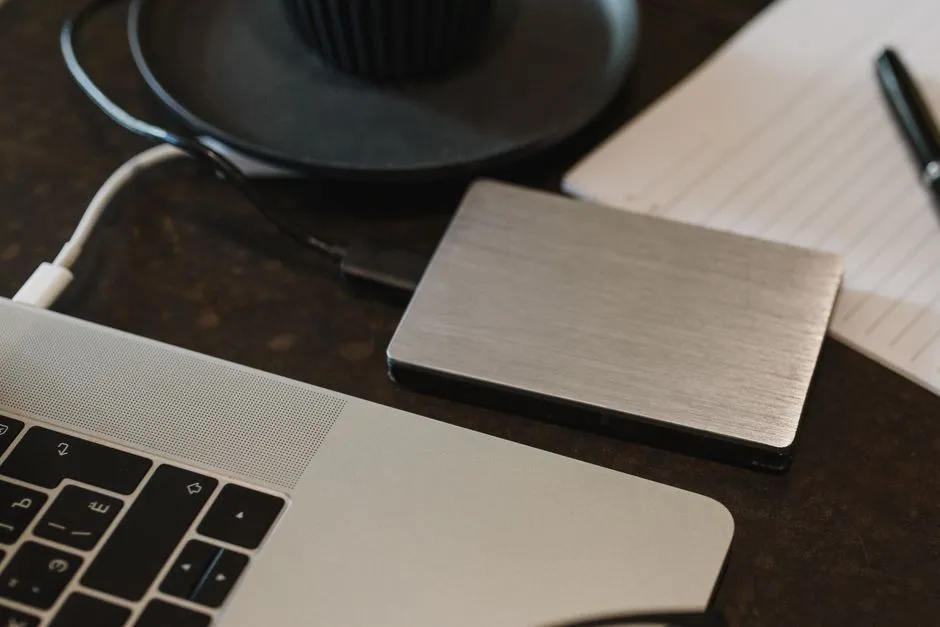
- A reset is an erase operation, not a diagnostic shrug
- First decide why you are resetting
- Read the exact reset screen
- Inventory data by location, not memory
- Back up to an independent destination
- Verify, because completion bars are optimistic
- Secure two-factor and account recovery
- Preserve encryption and recovery keys
- Export app-specific data
- Record applications, licences, and configuration
- Sale or transfer needs account removal in order
- Disconnect storage and peripherals
- Stabilise power and physical condition
- Preserve evidence before malware or fraud cleanup
- Run the reset only from an official path
- Restore selectively and verify again
- When recovery matters more than reset
A reset is an erase operation, not a diagnostic shrug
Before a factory reset, identify exactly what the selected option erases, back up local and app-specific data, and verify that backup by opening representative files or completing a test restore. Preserve authenticator and two-factor recovery, encryption keys, account passwords, eSIM details, licences, and work-device approval.
Disconnect external storage you do not intend to erase. For sale or transfer, follow the manufacturer’s current account-removal and activation-lock procedure before using its exact erase command. Never paste passwords, recovery keys, seed phrases, passkeys, or backup contents into an AI chat.
The warning belongs before the checklist because “I thought cloud sync had it” is a sentence with excellent hindsight and poor file-restoration ability.
First decide why you are resetting
Different goals require different preparation:
| Goal | Main risk | Better first question |
|---|---|---|
| Troubleshoot software | Erasing data without proving cause | Is there a reversible diagnostic or safe-mode test? |
| Remove malware | Restoring compromise or losing evidence | Should security or incident response preserve evidence first? |
| Sell or give away | Leaving accounts or recoverable access | What is the manufacturer’s transfer procedure? |
| Return a work device | Violating policy or deleting records | Has approved IT authorised and captured it? |
| Recover from forgotten access | Triggering account protection | What official recovery method proves ownership? |
| Prepare for repair | Losing data or disabling diagnostics | Does the repair provider even require a reset? |
A reset cannot fix a laptop with no power and cannot repair a broken charging port. See the laptop no-power checks and phone charging-port checks before using erasure as hardware incense.
Read the exact reset screen
“Reset,” “erase all content,” “refresh,” “reinstall,” “restore defaults,” and “recovery” do not mean the same thing across platforms. Options may:
- preserve personal files but remove apps;
- erase internal user data;
- erase or leave removable storage;
- reinstall from local files or download;
- reset settings only;
- clear security or encryption keys;
- retain or remove eSIM information;
- require account credentials afterward.
Read the current manufacturer documentation for the exact model and operating-system version. Then read the on-device confirmation screen. If they conflict or the option is unclear, stop.
AI can help translate wording, but ask it to cite the primary document and mark unknowns. Use the bounded AI repair prompt without sharing private data.
Inventory data by location, not memory
Create a table:
| Data type | Current location | Backup destination | Verified? |
|---|---|---|---|
| Photos and videos | Internal storage | Encrypted external drive + cloud | Opened samples |
| Documents | Local folders | External drive | Folder count checked |
| Messages | App database | Official app backup | Restore method confirmed |
| Authenticator | Device-bound app | Official transfer/recovery | Codes tested |
| Password vault | Synced encrypted account | Recovery key stored | Login tested elsewhere |
| Notes/voice recordings | Local and cloud mixed | Export + sync | Samples opened |
Look beyond obvious folders:
- desktop, downloads, documents, photos, videos, music;
- browser bookmarks and profiles;
- local email archives;
- messages and attachments;
- voice notes and call recordings where lawful;
- game saves;
- drawing, music, video, and coding projects;
- health, fitness, or device-app exports;
- scans and downloaded tickets;
- virtual machines and containers;
- application settings and licence files.
Cloud icons do not prove complete upload. “Optimise storage” can mean some originals are elsewhere, which is useful only when the account and recovery path still work.
Back up to an independent destination
Use a manufacturer-supported backup plus an independent copy where appropriate. A second folder on the same internal drive is not a backup against erasing that drive.
For an external drive:
- Confirm it has enough free space.
- Check its health through trusted tools.
- Use encryption appropriate to the data.
- Copy using a supported method.
- Eject safely after completion.
- Disconnect it before reset.
For cloud backup:
- Confirm the correct account.
- Check last successful backup or sync time.
- Confirm storage quota.
- Understand whether it is backup or bidirectional sync.
- Verify access from another trusted device.
Bidirectional sync can propagate deletion. A backup preserves a restorable state. The terms are cousins, not twins.
Verify, because completion bars are optimistic
Check:
- date and time;
- item count or source-versus-destination scope;
- size, allowing for compression and representation differences;
- representative large and small files;
- recent files;
- unusual formats and app databases;
- encrypted backup password;
- restore software availability;
- account access from another device.
Open several photos, videos, documents, archives, and project files from the destination. Where possible, restore a sample into a separate folder.
Do not rely only on filenames or thumbnails. A thumbnail can survive while the original is unavailable. A folder named “Backup Final Really” has no formal powers.
Secure two-factor and account recovery
Before erasing:
- confirm every essential account password;
- use the service’s official authenticator transfer or backup;
- generate fresh recovery codes and store them securely;
- register another trusted factor where appropriate;
- verify a recovery phone or email you control;
- preserve device-bound passkeys through the platform’s supported process;
- note hardware security keys and ensure a spare exists when required;
- test account access from another trusted device.
Do not screenshot recovery codes into the device being erased. Do not email them to yourself unencrypted, paste them into notes that may not sync, or share them with AI.
An eSIM can be part of SMS recovery. Understand whether the reset option removes it and how the carrier restores service. Do not erase it casually during international travel or before a time-critical login.
Preserve encryption and recovery keys
Full-disk encryption can make data unrecoverable when a key, secure hardware state, or account recovery path disappears. Save recovery keys using the platform’s official method in at least one secure location outside the device.
Verify:
- which volumes are encrypted;
- whether an organisational account holds the key;
- whether external backup encryption has a separate password;
- whether a password manager itself depends on the device;
- whether a recovery key printout or hardware key remains accessible.
Never disable security or upload keys to an AI service for convenience. For a managed device, only approved IT should handle encryption recovery.
Export app-specific data
Some apps do not include all data in a general device backup. Check official instructions for:
- encrypted messengers;
- authenticator apps;
- password managers;
- note-taking databases;
- finance and tax software;
- creative projects and custom assets;
- local email;
- game saves;
- health devices;
- browser profiles;
- developer signing keys and repositories.
Confirm version compatibility and whether export includes attachments, metadata, history, and encryption. Open or restore a sample.
Work, patient, client, legal, or regulated data needs approved retention and transfer. A factory reset can become unauthorised destruction, not spring cleaning.
Record applications, licences, and configuration
Take a privacy-reviewed inventory of installed apps, plugins, drivers, accessibility settings, VPN profiles, printers, paired devices, custom dictionaries, keyboard layouts, and specialised hardware.
Save legitimate licence information and deauthorise software only through official procedures. Some licences have limited activations. Do not photograph screens containing serials and then upload them to a public chat.
Record Wi-Fi names if needed, but not passwords in plaintext. Preserve network, certificate, or VPN configuration only according to security policy.
Sale or transfer needs account removal in order
Modern platforms use activation lock, factory-reset protection, secure enclave credentials, or account binding to discourage theft. Removing accounts incorrectly can leave the next owner locked out—or weaken security on a device that was not yours to transfer.
Use the manufacturer’s current “sell, give away, or trade in” instructions. They may require:
- unpairing watches, earbuds, or accessories;
- signing out of the main account;
- disabling activation lock through an authenticated process;
- removing payment cards;
- handling eSIM or physical SIM;
- removing the device from trusted-account lists;
- completing the reset from a specific menu.
Do not bypass activation protection or help another person do so. For lost, stolen, financed, leased, managed, or ownership-disputed equipment, contact the rightful owner, carrier, employer, or authorities.
Disconnect storage and peripherals
Remove memory cards, external SSDs, backup drives, cameras, and USB devices not intended for erasure. Check whether the reset menu lists multiple drives.
On computers, internal secondary drives can also be affected depending on the tool. Identify them by manufacturer documentation and trusted storage settings, not by guessing from capacity. If the erase scope remains unclear, stop and use qualified support.
Disconnecting the verified backup is especially important. A reset tool cannot erase a drive it cannot see, which is one of computing’s more reassuring limitations.
Stabilise power and physical condition
Do not reset a device with a swollen, hot, smoking, hissing, wet, or unstable battery. Stop using and charging it and seek appropriate service.
For a stable device, connect approved power as the manufacturer directs and ensure network access if cloud recovery is required. Do not begin firmware or erase operations during power instability, storms, travel, or a deadline.
A reset can take longer than expected. Do not interrupt it unless official instructions address a frozen process. Forced power loss during storage or firmware work can create a larger failure.
Preserve evidence before malware or fraud cleanup
When the device may be involved in fraud, stalking, workplace compromise, ransomware, unauthorised access, or legal dispute, resetting can destroy logs and evidence. Disconnect from networks if qualified incident guidance tells you to, document observable facts, and contact trusted security, employer, law-enforcement, legal, or specialised support as appropriate.
The FTC warns that tech-support scammers seek remote access and payment through alarming calls and pop-ups. Its support-scam guidance recommends going directly to a trusted company rather than using the number in the warning.
If a scammer had access, secure accounts from a known-clean device, contact financial providers, and follow official identity-theft steps before assuming a reset solves the whole incident.
Run the reset only from an official path
When every box is verified:
- Save and close work.
- Confirm backup and recovery access once more.
- Disconnect unrelated storage.
- Follow the exact current manufacturer procedure.
- Read the final erase scope.
- Start only if the wording matches your intention.
- Keep power and required network stable.
- Record completion without exposing identifiers.
Do not download a random “factory reset utility,” run pasted terminal commands, alter partitions, or flash firmware because a chatbot produced a confident code block. Official recovery media must come from an authenticated manufacturer source and match the exact device.
Restore selectively and verify again
After a troubleshooting reset, install current official updates and security fixes, then restore only from a trusted backup. Check whether the original symptom returns before reinstalling every utility and extension.
Verify photos, documents, messages, app data, and authentication. Keep the old backup untouched until the restored device works and a new independent backup exists.
For a sold device, stop at the initial setup screen as the manufacturer directs. Do not sign back in “just to check,” which can reattach the device to your account.
When recovery matters more than reset
If no verified backup exists and the data is valuable, stop. Continuing to use, reset, reinstall, or write to the device can reduce recovery options. Contact a reputable data-recovery professional and explain encryption, failure, and prior attempts.
Modern encrypted devices may make post-reset recovery impossible when keys are destroyed. No ethical provider or AI can guarantee success. Avoid software that demands broad access, secret payment, or installation onto the same failing storage.
Reset is a useful tool after preparation. Before preparation, it is a very efficient way to convert uncertainty into absence.